
Download Weather Widget Desktop – Free Stylish Weather App for macOS
Overview
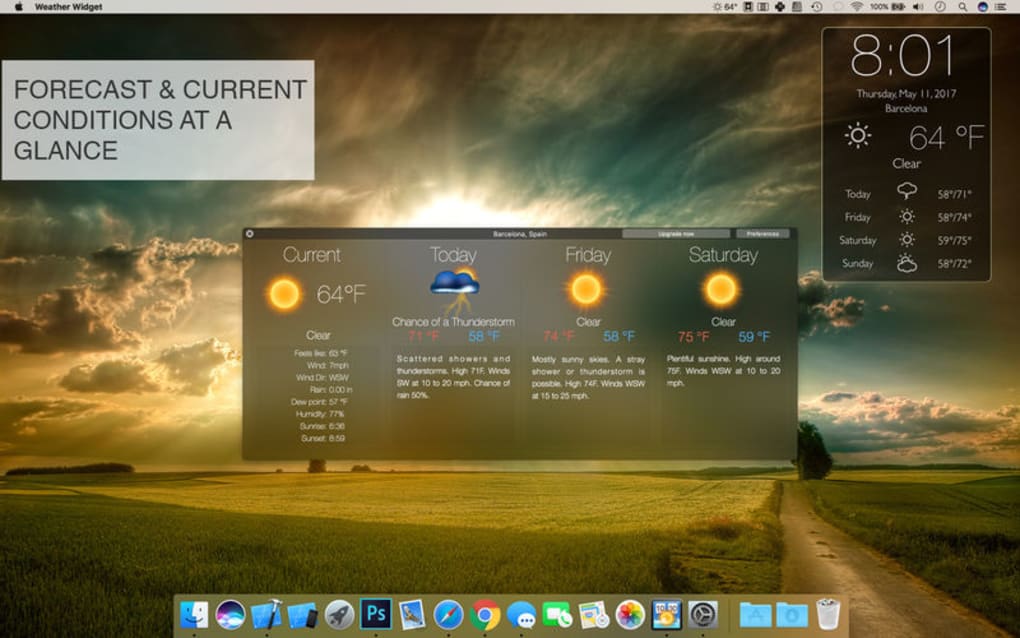
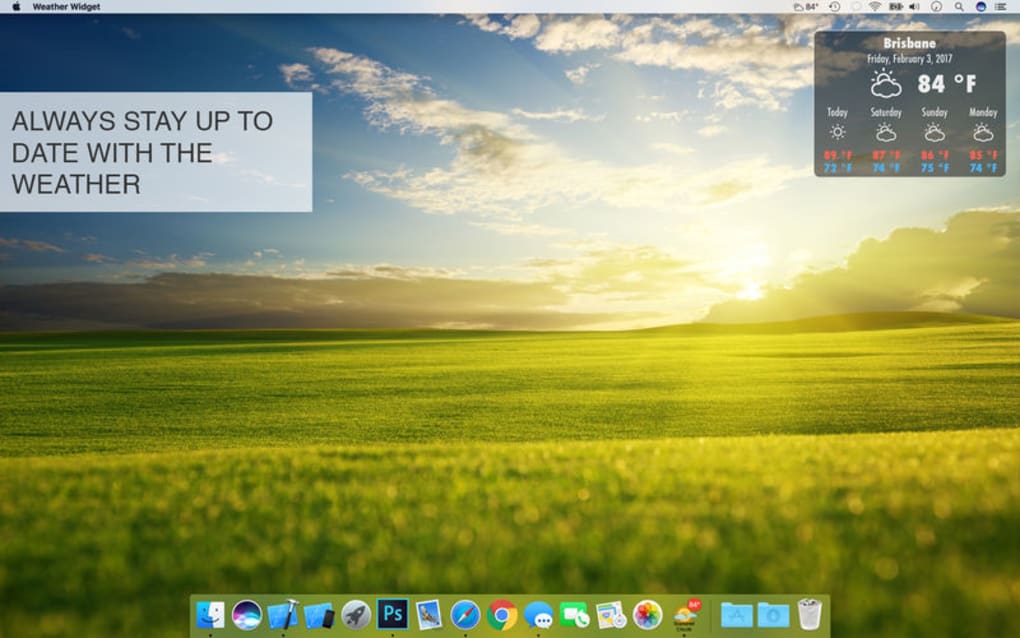
Weather Widget Desktop is a free, stylish weather widget designed specifically for macOS desktops. It sits elegantly on your screen and provides up‑to‑date weather information for multiple locations, all without demanding a bulky window or intrusive pop‑ups. The app’s clean interface can be resized, its opacity adjusted, and even set to appear on a “hot corner” so that a quick hover reveals the forecast on top of any open windows.
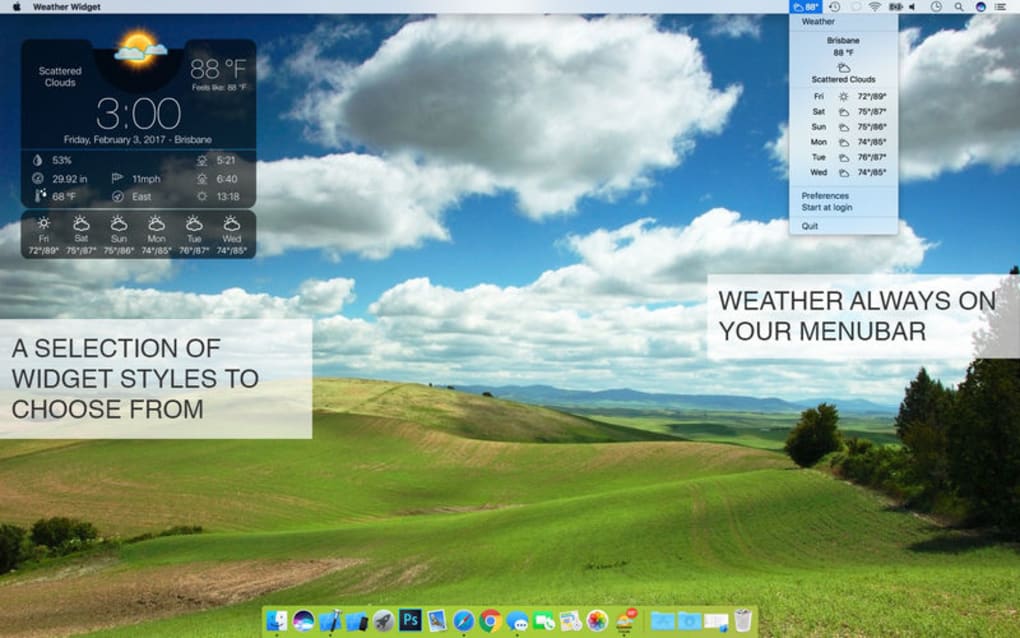
While the data refresh interval is not real‑time, the widget delivers a reliable snapshot of temperature, humidity, wind speed, and a concise forecast for the day ahead. In addition, a tiny segment of the information lives in the macOS menu bar, giving you instant access without cluttering your workspace. Whether you are a designer who values aesthetic consistency, a remote worker who needs a quick glance at the weather, or simply someone who enjoys a polished desktop experience, Weather Widget Desktop offers a balance of visual appeal and functional depth.
Key Features
- Stylish, minimalist UI that blends with macOS aesthetics.
- Resizable widget with adjustable opacity for perfect placement.
- Hot‑corner activation – hover to bring the widget to the front.
- Support for multiple locations – monitor weather in several cities at once.
- Metric and imperial units toggle for global users.
- Automatic start‑on‑login – weather ready as soon as you log in.
- Menu‑bar summary for quick glance without opening the widget.
- Free download with optional in‑app purchases for premium skins.
- Low CPU usage – designed to run silently in the background.
- Secure data handling – pulls information from reputable weather APIs.
These features are wrapped in a lightweight package that respects your Mac’s resources. Because the widget lives as a native macOS app, it integrates seamlessly with System Preferences, allowing you to set permissions and privacy options just like any other tool. The ability to configure hot corners adds a layer of interactivity that many traditional desktop widgets lack, turning the widget into a dynamic assistant rather than a static display. Moreover, the support for both metric and imperial measurements ensures that users from different regions can customize the widget to match their familiar units, making the app truly international. Even though the weather data refreshes at a moderate interval, the widget caches the latest information, so you always have a reliable snapshot even when offline.
Installation & Usage Instructions
Step‑by‑Step Installation
Downloading Weather Widget Desktop is straightforward. Visit the official website or the Mac App Store, click the Download button, and the installer package (.dmg) will begin to download. Once the file is complete, open it and drag the Weather Widget Desktop icon into your /Applications folder. macOS may prompt you to confirm the app’s source; simply click “Open” to allow the installation. The app requires no additional dependencies and runs on macOS 10.13 (High Sierra) and later.
First‑Time Configuration
After launching the widget, a brief onboarding wizard guides you through the core settings:
- Select Locations: Add one or more cities by typing the city name or ZIP code. The widget will autocomplete using the built‑in weather API.
- Choose Units: Switch between Celsius/Fahrenheit and kilometers/miles for wind speed.
- Adjust Appearance: Resize the widget by dragging its corners, set the opacity slider, and pick a light or dark theme that matches your desktop wallpaper.
- Enable Hot Corner: Open System Preferences → Desktop & Screen Saver → Hot Corners, then assign a corner to “Show Weather Widget”.
- Set Auto‑Launch: Tick the “Start at login” box so the widget appears automatically each time you log into your Mac.
Daily Usage Tips
Once configured, the widget works silently in the background. You can:
- Hover over the assigned hot corner to bring the widget to the foreground.
- Click on the widget’s title bar to expand a detailed forecast for the next 7 days.
- Right‑click (or Control‑click) the widget to access quick actions such as “Refresh Now”, “Add New Location”, or “Open Settings”.
- Keep an eye on the menu‑bar icon for a one‑line temperature readout, ideal for rapid checks.
Because the widget consumes minimal resources, you can keep it open at all times without noticeable impact on battery life or system performance. If you ever need to disable the widget temporarily, simply quit the app from the Dock or use the menu‑bar context menu.
Compatibility, Pros & Cons
Weather Widget Desktop is built exclusively for macOS (10.13 High Sierra and newer). While the current version does not offer native Windows, Android, or iOS clients, the developers have hinted at future cross‑platform expansions. For now, Mac users receive a native experience that leverages the system’s graphics engine for smooth rendering.
Pros
- Free & Stylish: No cost to download, with a sleek design that matches modern macOS aesthetics.
- Multiple Locations: Monitor weather in several cities without opening separate windows.
- Customizable Appearance: Resize, adjust opacity, and switch themes to fit any desktop layout.
- Hot‑Corner Activation: Instantly bring the widget forward with a simple mouse movement.
- Low Resource Usage: Runs quietly in the background, preserving battery life and CPU cycles.
- Menu‑Bar Integration: Quick glance at temperature without cluttering the screen.
Cons
- Mac‑Only: No official Windows, Android, or iOS versions at present.
- Infrequent Data Refresh: Weather information updates at longer intervals, limiting real‑time accuracy.
- Limited Advanced Features: No radar maps, severe weather alerts, or custom notification settings.
- Basic Free Version: Premium skins and additional customization require in‑app purchases.
Overall Verdict: Weather Widget Desktop delivers a beautifully designed, low‑impact solution for Mac users who want quick weather insights without sacrificing desktop real estate. While the refresh rate could be faster and cross‑platform support is lacking, the free core functionality outweighs these drawbacks for most casual users.
Frequently Asked Questions
Is Weather Widget Desktop really free?
Yes, the base version of Weather Widget Desktop can be downloaded and used at no cost. Optional premium skins and advanced customization are available as in‑app purchases, but the core widget remains free.
Can I use the widget on Windows or Linux?
Currently, Weather Widget Desktop is built exclusively for macOS. The development team has expressed interest in expanding to Windows and Linux in future releases, but no official timeline has been announced.
How often does the weather data refresh?
The widget refreshes its data approximately every 30 minutes. This interval balances up‑to‑date information with low battery and bandwidth consumption. Users can manually trigger a refresh from the widget’s context menu.
Will the widget impact my Mac’s performance?
No. Weather Widget Desktop is optimized for minimal CPU and memory usage. Benchmarks show it consumes less than 5 MB of RAM and negligible CPU cycles when idle, making it safe for both laptops and desktops.
Can I customize the widget’s appearance?
Absolutely. Users can resize the widget, adjust its opacity, switch between light and dark themes, and select from several premium skins. These options are accessible via the Settings panel or by right‑clicking the widget.
Conclusion – Why You Should Download Weather Widget Desktop Today
Weather Widget Desktop offers a free, elegant solution for anyone who wants instant weather information without cluttering their workspace. Its macOS‑native design ensures smooth performance, while features like hot‑corner activation, multi‑location support, and menu‑bar integration add genuine utility. Although the refresh rate isn’t real‑time and the app is limited to macOS, the balance of style, simplicity, and low resource consumption makes it a worthwhile addition to any Mac user’s desktop. Download Weather Widget Desktop now to enjoy a stylish, always‑ready weather companion that blends seamlessly with your workflow.







